Buying from a partner
Start at the dashboard
Procurement → Partners → {partner} → Shopping opens the shopping dashboard: what is about to run out, what is already on its way, and the two limits your list lives inside — the order budget for this partner and the warehouse space available. Work the risk tiles from there and most of the list writes itself; everything below is how the list behaves once you are in it.
The shopping list
Next to the dashboard, the Shopping list tab holds every open line.
- Add stocks opens the partner's stock list with their availability, how each item is packed, your own current stock, and how much you have used over the last four quarters. Quantities are in the seller's shipping units (SKOs).
- Each line tells the stock story at a glance — their stock, our stock, and when we run out — plus the amount at your buying price, with the open items' total at the foot of the table.
- Open lines are fully yours: pick the priority (low → urgent) straight from the dropdown in the table, or remove the line with its bin button. To change a quantity, use Browse — the same item's stepper there edits the open line directly. Once the partner picks a line it locks, and its state tells you where it is.
Browsing the partner's catalogue
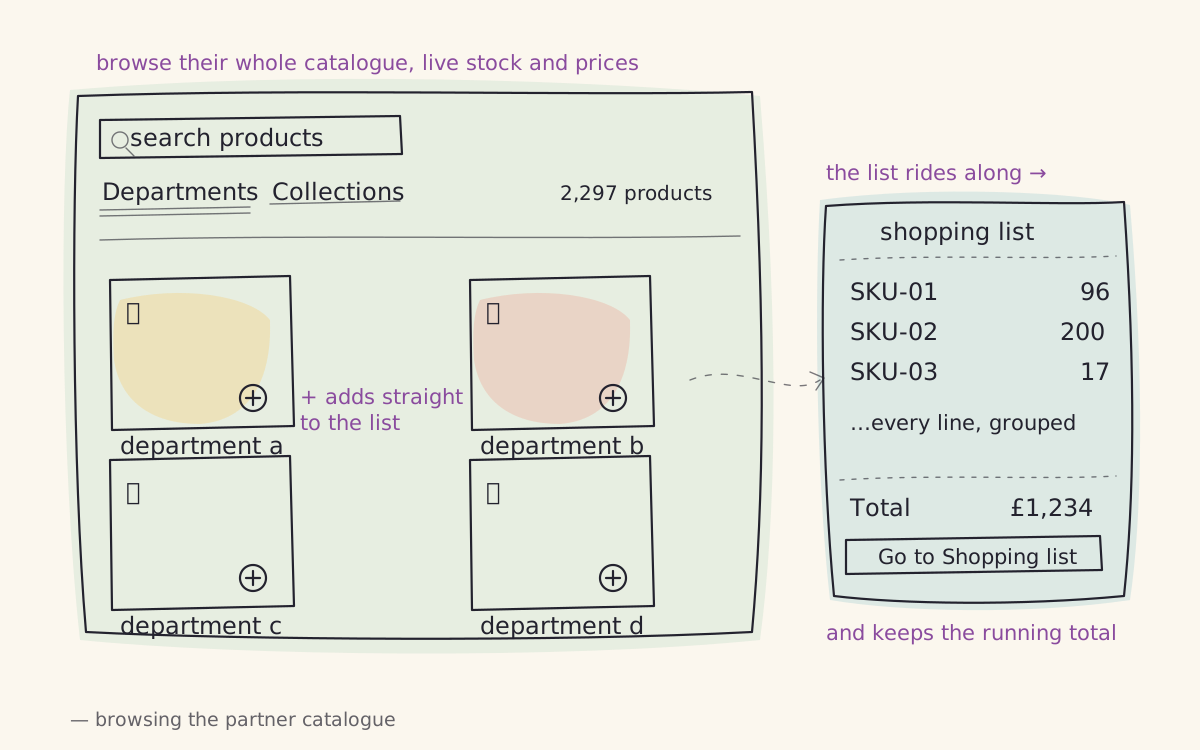
Next to the shopping list there is a Browse tab: the partner's whole catalogue as a shop, with live stock and prices. Move through it by Departments or Collections, drill down to families, or just type in the search box. Every product card shows the current price, a Their stock badge with what the partner has available, and — for items you use — your own numbers: our stock, our sales / quarter and we run out in so many days (red when it's two weeks or less).
Two things about that catalogue are worth knowing. The prices are yours, not the shelf's: the seller's list price with your intercompany discount already taken off, converted into your own organisation's currency, so what you read is what the invoice will say. And it includes products the partner has made exclusive to you — lines that never appear on their public shop but exist for your organisation. If you cannot find something you expected, that is worth asking about; if you find something you did not expect, it is probably yours by arrangement.
Ordering happens right on the card: the quantity box is your shopping list. Type or step a number and the line is added or updated on the open list; set it back to 0 and the line is removed. Next to it, a dashed suggested chip shows the quantity aiku would order — one click fills the box with it.
While you browse, your shopping list rides along as a receipt pinned to the right — every line grouped by family, with the running total — so you always know where the order stands. Go to Shopping list takes you back to the full editable list.
Auto-fill: a budget and, if you like, an instruction
Auto-fill exists so replenishment doesn't depend on someone remembering every item. You give it one number — a budget, in the same currency as the prices you are buying at — and it builds a proposal that fits inside it:
- It looks at every item the partner can supply that you actually use, ranks them by how soon you run out (the same we run out in forecast you see while browsing), and tops up the soonest-out first, each at its recommended order quantity.
- Every proposed line shows its reason ("Our sales/quarter ~48 · our stock 0 · we run out now"), the quantity and the cost, so you can see why it is there. Quantities follow the same forecast as the suggested chips in Browse.
- The instruction box is optional and takes plain language: "prioritise essential oils, skip anything we hold over 8 weeks of", "focus on candles, nothing seasonal". An AI reads your instruction together with the same usage data and reshapes the proposal accordingly — but its output is checked against reality before you see it: quantities are capped at what the partner actually has, and the total is forced back inside your budget. If the instruction can't be followed, you get the standard proposal instead.
- Nothing is added by itself. The proposal is a set of ticked lines you can untick, re-quantify or regenerate with a different budget or instruction; only Add items to shopping list commits anything.
- Some items opt out. A SKO with Do not auto order switched on (in the SKO's edit screen, under Stock Data) never appears in a proposal — for items procurement wants to keep under manual control. You can still order it by hand from Browse or the stock list; only the automatic path skips it. SKOs marked On Demand are left out of partner shopping entirely.
Auto-fill can also be opened already scoped: + fill on a risk tile on the dashboard opens it for that bucket alone, with the proposal already generated. Same rules — you adjust, untick and confirm; nothing is added by itself.
A good habit: work the dashboard tiles worst-first, then run Auto-fill once a replenishment cycle for whatever is left, read the reasons, untick what you disagree with, and add the rest.
When the list says no
Adds are refused in three cases, on purpose: the list has reached the budget for this partner (A-rank and out-of-stock items are exempt — an emergency always fits), the warehouse is under 5% free locations, or this partner has already claimed its fair share of the free slots with products you have never stocked. Deal with the message rather than looking for another way in: the same guard covers manual adds, bulk adds and Auto-fill. The dashboard article explains where those limits come from.
When the goods are on their way
Once the partner sends a shipment to their warehouse, an incoming stock delivery appears under your partner's Stock deliveries. Leave it alone while it says confirmed or dispatched — it mirrors the seller's warehouse and updates itself. When the boxes physically arrive: receive, check, and place into locations exactly as you would for any supplier delivery. Anything short or damaged is dealt with after receiving, against the linked invoice — see the overview for how money works.